USD
USD EUR
EUR GBP
GBP CAD
CAD AUD
AUD HKD
HKD JPY
JPY KRW
KRW SGD
SGD NZD
NZD THB
THB TWD
TWD 繁體中文
繁體中文 日本語
日本語 한국어
한국어 Français
 Español
 Deutsch
 Nederlands
 English


By SvicloudTV BOX | 11 September 2025 | 0 Comments
How to Disable HDMI Audio Output on the SviCloud Soundbar?
If you’re using the SviCloud Soundbar, you might notice that when the device is connected to your TV, sound is also played through the TV speakers. This can make the audio less clear or create echo effects. To get the best sound quality from the soundbar alone, you’ll want to turn off the HDMI audio output.
Follow these simple steps to disable HDMI audio:
Turn on your SviCloud Soundbar.
Make sure the device is fully powered on and you are on the home screen.
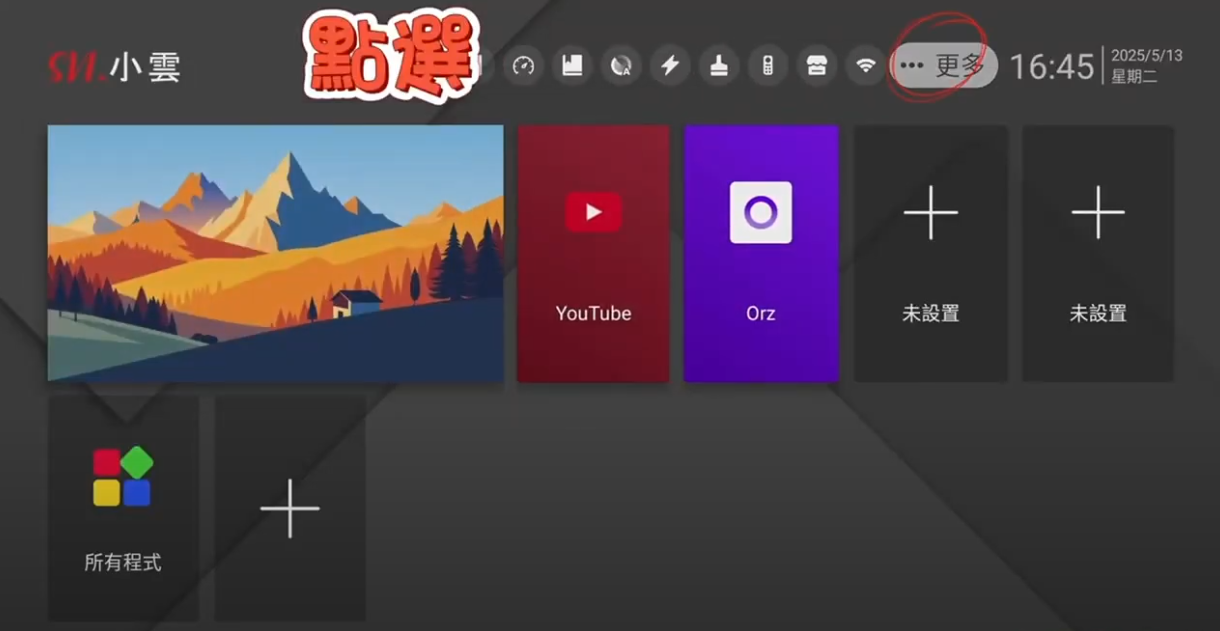
Go to “More” on the top menu.
From the home page, look at the top section of the screen and select More.
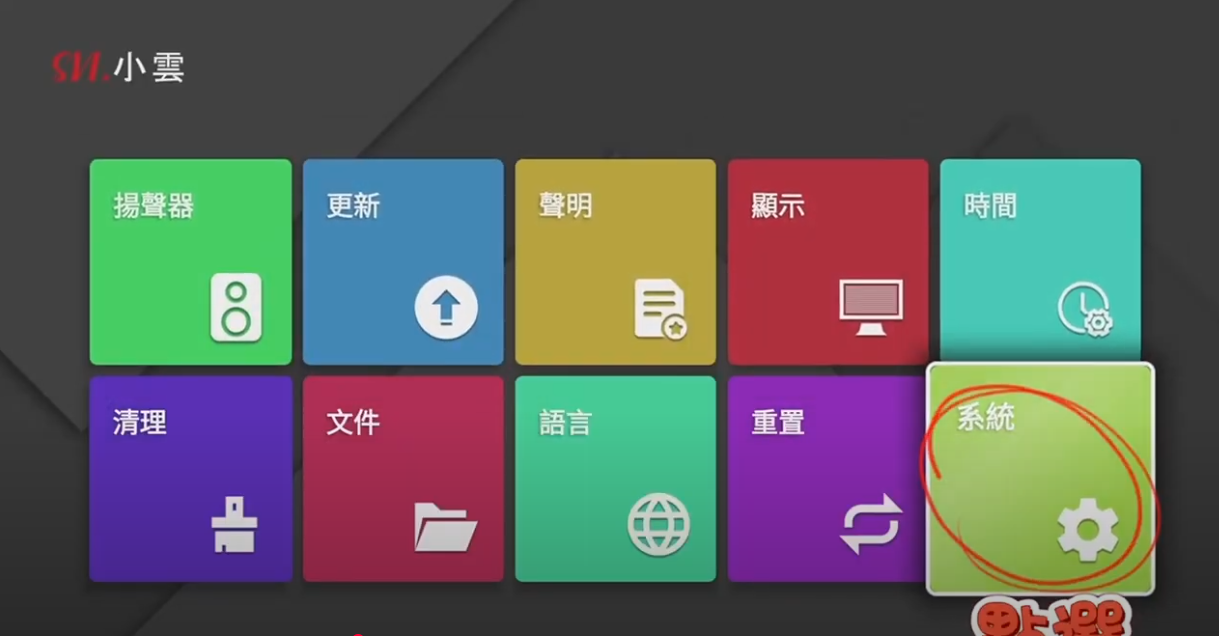
Select “System.”
In the options menu, choose System to open system settings.
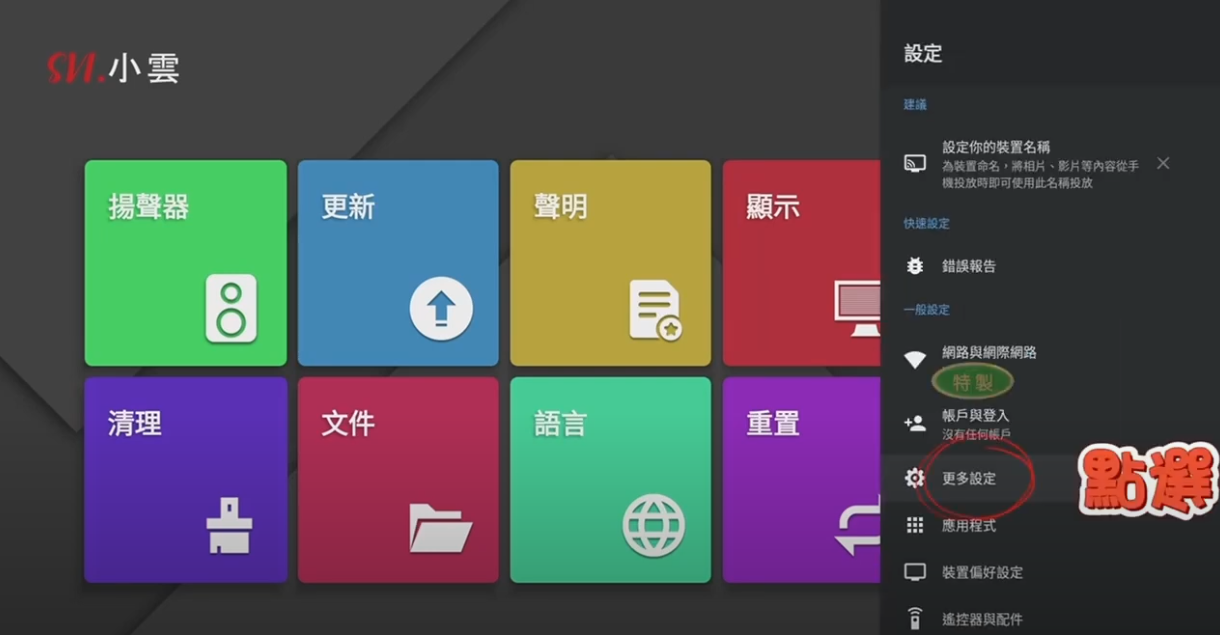
Enter “More Settings.”
Inside the system menu, click on More Settings for additional options.
Go to “Sound.”
Scroll and select Sound to manage audio settings.
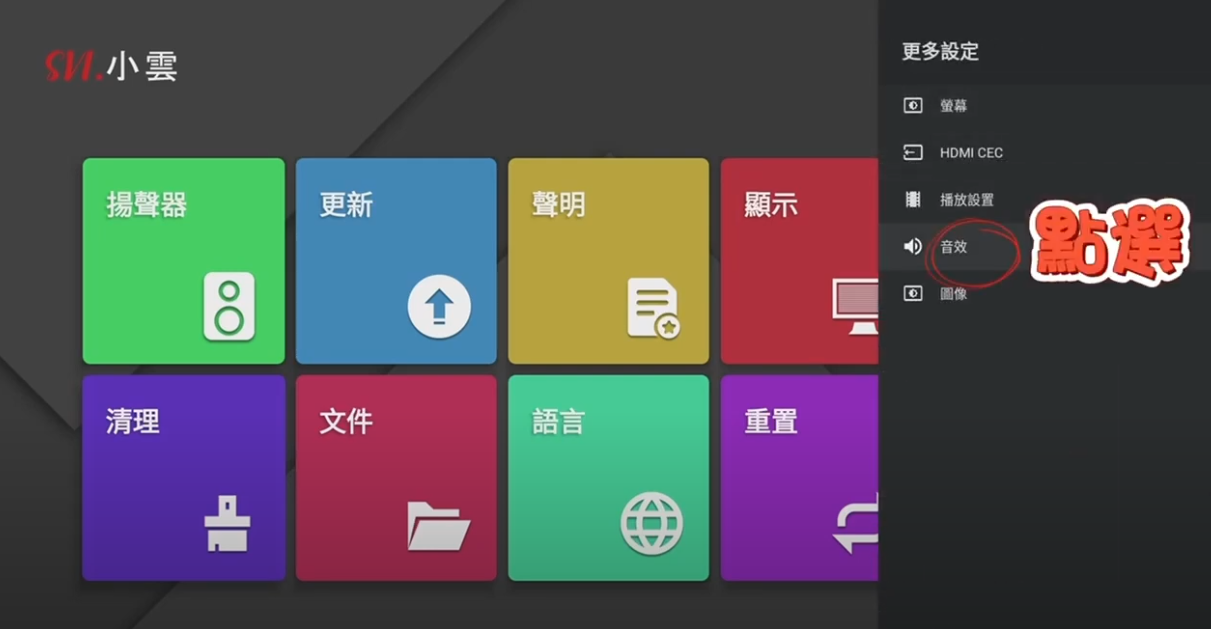
Turn off HDMI Audio Output.
In the sound settings, locate the HDMI Output option and disable it.
Once you’ve completed these steps, the sound will only come from your SviCloud Soundbar and not from your TV speakers.
Follow these simple steps to disable HDMI audio:
Turn on your SviCloud Soundbar.
Make sure the device is fully powered on and you are on the home screen.
Go to “More” on the top menu.
From the home page, look at the top section of the screen and select More.
Select “System.”
In the options menu, choose System to open system settings.
Enter “More Settings.”
Inside the system menu, click on More Settings for additional options.
Go to “Sound.”
Scroll and select Sound to manage audio settings.
Turn off HDMI Audio Output.
In the sound settings, locate the HDMI Output option and disable it.
Once you’ve completed these steps, the sound will only come from your SviCloud Soundbar and not from your TV speakers.